Install the key2ski app
Download the free key2ski app and check that your smartphone is compatible before buying your ticket.
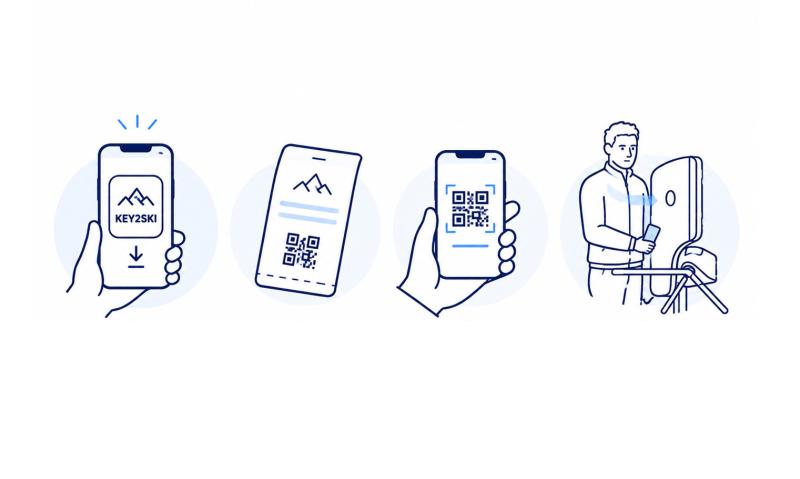
Download the free key2ski app and check that your smartphone is compatible before buying your ticket.
Buy your ski pass in the Online Ticketshop and select Smartphone Ticket as your ticket delivery method.
Open the download link or scan the QR code to load your ticket into the key2ski app. Activate Bluetooth and location services.
Carry your smartphone on your left side at chest level and keep the app running in the background. Access works via Bluetooth.
You need a compatible smartphone, the free key2ski app and a valid Smartphone Ticket.
iPhone 6 and older devices are not supported. This also currently applies to devices from Huawei, OnePlus, Oppo and Honor.
Some Xiaomi, Redmi, Poco and Samsung S8/S9 models may also have compatibility limitations.
The key2ski app is available free of charge from the Apple App Store and Google Play.
If your smartphone does not meet the system requirements, the key2ski app may not be displayed in the app store.
Installing the app first allows you to check whether it is available and compatible with your smartphone.
Complete the initial setup and grant the required permissions before purchasing your Smartphone Ticket.
Bluetooth and location services must be enabled for access at the turnstile. Your ticket must also be activated manually in the app.
On Android devices, battery optimisation should be disabled for key2ski so that the app can continue running in the background.
Check that your smartphone has enough free storage space and then try again.
Smartphone Tickets are available exclusively online through the Ticketshop.
Selected one-day ski passes, multi-day ski passes and Ski amadé ALL-IN Card White/Gold are available as Smartphone Tickets.
During the purchase process, you can see whether the Smartphone Ticket option is available when selecting your ticket delivery method.
After purchase, you will receive a confirmation email containing the information for your Smartphone Ticket.
Open the download link on the smartphone you want to use at the lift or scan the QR code with the key2ski app.
A Smartphone Ticket can only be loaded into the app once and is non-transferable.
Each person therefore needs their own smartphone.
No. Once the Smartphone Ticket has been loaded onto a device, it cannot be transferred to another smartphone.
Yes. You can buy several ski passes in one transaction. Each person receives their own QR code or download link.
Each ticket must be loaded into the key2ski app on the respective person's smartphone.
Yes. You can store several of your own Smartphone Tickets with different validity periods in the key2ski app.
Enable Bluetooth and location services and grant the required permissions. Then select “Activate” or “Use Ticket” in the key2ski app.
Yes. Once your Smartphone Ticket is activated in the app, you can go directly to the lift.
Carry your smartphone on your left side at chest level, for example in your left jacket pocket.
Do not keep it in your trouser pocket. Wallets, metal objects or other cards should not cover the smartphone.
Yes. The app must remain active in the background. If you close it completely, the Smartphone Ticket will be deactivated.
Simply reopen the app and activate your ticket again.
No. Internet access is only required for the initial download of your Smartphone Ticket.
Afterwards, the ticket works offline. Communication with the access system takes place via Bluetooth.
No. According to the current key2ski information, the app does not collect personal or location-based usage data.
No. You choose one ticket delivery method when purchasing your ski pass. Do not carry an additional KeyCard close to your smartphone.
Multiple media may be detected at the same time and can cause problems at the turnstile.
Possible reasons include:
Check your internet connection and make sure you are using the correct QR code or download link.
Check that you purchased a Smartphone Ticket and then load it into the key2ski app using the QR code or download link from your purchase confirmation.
No. A Smartphone Ticket that has already been loaded cannot currently be transferred to another device.
Activation tells the app which Smartphone Ticket you want to use. Tap “Activate” or “Use Ticket” before entering the lift.
App updates can improve compatibility, stability and ease of use.
Detection speed can vary depending on the smartphone. This is due to technical differences between devices.
Please contact our team on site. With your purchase confirmation, your Smartphone Ticket can be issued on a replacement KeyCard at a ticket counter.
We recommend keeping other cards away from your smartphone while using the Smartphone Ticket, as they may interfere with detection at the turnstile.
Take your booking confirmation to a ticket counter. Your Smartphone Ticket can be issued on a replacement KeyCard.
Visit a ticket counter with your booking confirmation. Your Smartphone Ticket can be issued on a new KeyCard.
On newer smartphones, additional battery consumption is approximately 10–20% per skiing day. Actual usage depends on the device.
No. Mobile data is not required after the initial ticket download. Communication with the access system takes place via Bluetooth.
Yes. You’ll find the permission number you can use in your booking confirmation. Unfortunately, photo points and speed tracks don’t work with a smartphone ticket.Your booking confirmation contains the authorisation number that you can enter in your Skiline profile.